Mobile Billing · 6 min read
Mobile Invoicing: Bill Clients From Your Phone
Invoice on site, not days later. What to look for in a mobile invoicing tool, a worked field-service example, and answers to common questions.
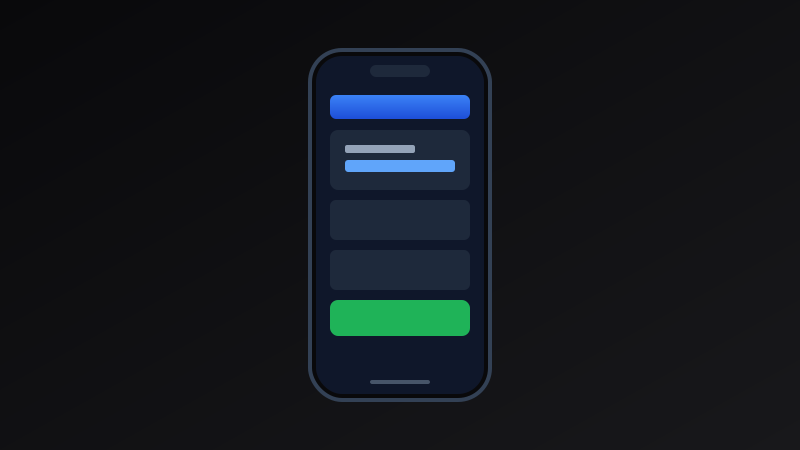
If you work on site, in transit, or between client meetings, waiting until you are back at a desk to invoice is a habit that quietly delays your income. Every day between finishing a job and sending the bill is a day the client is not thinking about payment. Mobile invoicing closes that gap: you finish the work, open the tool on your phone, and send the invoice before you leave the property or the parking lot.
This guide explains what makes a tool genuinely usable on a small screen, walks through a field-service example, and lists the checks that stop small-screen mistakes from becoming payment delays.
Worked example
An on-site service call
An HVAC technician completes a repair and generates an invoice on a tablet before leaving the property.
- Service
- Compressor diagnostic and valve replacement
- Parts
- Replacement valve and fittings — 140.00
- Labor
- 1.5 hours at 90 per hour — 135.00
- Total due
- 275.00 — payment link sent by email
Original diagram
Mobile billing workflow
- 1Complete on-site service
- 2Open mobile invoicing tool
- 3Input line items and tax
- 4Email PDF or share payment link
What to look for in a mobile invoicing tool
A high-performing mobile invoice tool must be lightweight, touch-friendly, and capable of rendering clean PDF invoices on smaller screens. Interfaces with large input fields and touch targets make on-site entry quick and error-free.
- Choose a tool with responsive, touch-friendly forms.
- Confirm PDF downloads work directly inside mobile browsers.
- Pre-save standard services or items for rapid entry.
- Verify that offline edits save automatically to browser storage.
Prepare before you head out
Save your common services, rates, and client details before you leave the office. Pre-built templates and saved client profiles mean you only need to adjust quantities and dates on site.
Getting paid on the spot
If you accept card or instant payment, include a payment link in the invoice. Clients who pay immediately are far less likely to let the invoice slip into a backlog.
Small-screen checks that prevent mistakes
Read the whole invoice once before sending. Small screens make typos easy to miss, and a wrong number delays payment.
Who benefits most from mobile invoicing
Field services, trade contractors, mobile consultants, and anyone who completes work at the client’s location. Studies show invoices issued within 24 hours of project completion are paid significantly faster than those sent weeks later.
Common questions
Helpful clarifications
Do I need to download an app to invoice from my phone?
Not necessarily. Many invoice tools work in a mobile browser, and some can be added to your home screen. Native apps can offer extra features, so choose whichever suits how you work.
Can I add my logo when invoicing from a phone?
Usually yes. Most tools let you upload a logo from your camera roll or files. Use a transparent PNG or an SVG so it stays sharp.
Can I create invoices without an internet connection?
Some tools support offline drafting and sync or export later. Test this before you rely on it, especially if you work in places with weak signal.
Is it safe to store client details on my phone?
Use a screen lock, keep your device updated, and avoid sharing more client data than you need. Back up your records so a lost phone does not mean lost invoices.
How soon after finishing a job should I send the invoice?
As soon as the work is complete and agreed, ideally the same day. Prompt invoices reach the client while the job is still fresh in their mind.
What should I check before sending an invoice from my phone?
Client name, dates, quantities, rates, tax, total, and payment instructions. Small screens make typos easy to miss, so read the whole invoice once before you send it.